Processing Delay Demystified: What Is Really Slowing Down Your Sanyo Projector's Response
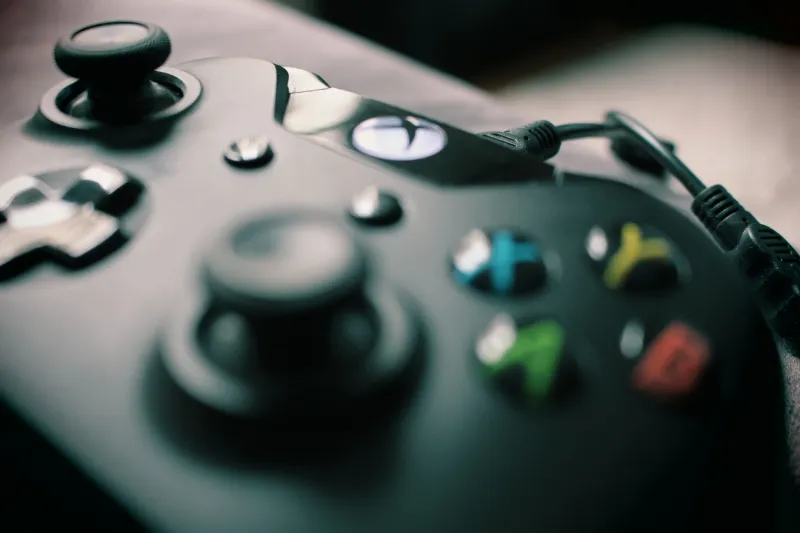
There is a particular frustration familiar to anyone who has connected a gaming console or a live sports feed to a projector: the image looks excellent, but something feels subtly wrong. Button presses seem to register a fraction too late. The ball has already moved before the screen catches up. The instinct is to blame the projector's hardware — its panel technology, its lamp, or its age. In most cases, that instinct is incorrect.
What owners are encountering is processing-induced latency: delay that originates not in the projector's display components but in the image pipeline that precedes them. Understanding this distinction is the first step toward resolving it.
What Input Lag Actually Measures
Input lag, in precise terms, describes the elapsed time between a signal arriving at the projector's HDMI port and the corresponding image appearing on screen. It is measured in milliseconds and is entirely separate from the projector's native panel response time — the speed at which individual pixels transition between states.
A projector can have excellent pixel response characteristics and still deliver a sluggish experience if its internal processing chain introduces significant delay. This is the trap that catches many buyers and owners: the specifications they read before purchasing address one type of performance, while their lived experience reflects another.
Three Internal Processes That Add Delay
Scaling and Resolution Conversion
When the incoming signal does not match the projector's native resolution, the image must be scaled. This computation takes time. A 1080p signal fed into a native 4K projector requires upscaling; a 4K signal arriving at a 1080p-native display requires downscaling. Both operations introduce latency.
The degree of delay depends on the sophistication of the scaling algorithm employed. Basic nearest-neighbor scaling is fast but produces inferior results. Multi-pass algorithms that analyze neighboring pixels to reconstruct detail are more visually impressive but computationally heavier — and slower. Many projectors default to their highest-quality scaling mode regardless of the use case, which is appropriate for film but counterproductive during interactive content.
Color Processing and Dynamic Adjustment
Modern LCD projectors apply a continuous series of color corrections between signal input and image output. Gamma mapping, color temperature adjustment, dynamic contrast calculation, and gamut management all require processing cycles. When dynamic contrast is enabled — a setting that continuously adjusts output brightness based on scene content — the projector must analyze each incoming frame before displaying it, adding measurable delay to the pipeline.
This is worth emphasizing: features that appear to improve image quality can simultaneously degrade interactivity. The trade-off is real, and most projectors do not make it visible to the user.
Frame Interpolation
Frame interpolation, sometimes marketed under names such as motion smoothing or motion enhancement, generates synthetic frames between the source frames to create the appearance of higher motion fluidity. The mathematics involved require the projector to receive, analyze, and hold frames before inserting interpolated content between them. By definition, this process cannot operate in real time — it requires a buffer, and that buffer translates directly into latency.
For cinematic content, interpolation can be a matter of personal preference. For gaming or live broadcasts, it is effectively incompatible with responsive performance and should be disabled entirely.
How to Measure Your Projector's True Latency
Subjective impressions of lag are unreliable. Two viewers in the same room, watching the same content, may report different experiences based on their sensitivity and prior expectations. Objective measurement eliminates this ambiguity.
The most accessible method for home users involves a high-speed camera — a modern smartphone shot at 240 frames per second is sufficient — combined with a simultaneous display reference. Display an on-screen timer or a rapidly changing numerical counter on a secondary screen connected directly to the source device, then capture both the source display and the projector screen in the same frame. Count the frames between the two outputs. At 240fps, each frame represents approximately 4.2 milliseconds. Multiply the frame count by that value to arrive at a latency figure.
More precise measurements can be achieved with a dedicated lag tester, a device available from several US electronics retailers and online vendors for under $50. These units generate a known signal and measure the delay to display with greater accuracy than camera-based methods.
Document your baseline before making any adjustments. This gives you a reference point to measure against as you modify settings.
Settings Adjustments That Reduce Latency Without Sacrificing Quality
Enable Game Mode If Available
Many Sanyo projectors include a dedicated Game Mode or similar preset that disables the most latency-intensive processing steps simultaneously. This is the fastest path to reduced delay. If your unit offers this option, enable it for interactive sessions and return to your standard picture preset for passive viewing.
Disable Frame Interpolation
Navigate to the motion processing section of your projector's image menu and disable any interpolation or motion enhancement settings. This single adjustment typically produces the most dramatic latency reduction. The visual difference on film content may be noticeable to some viewers; on gaming and sports content, it is generally imperceptible and the responsiveness gain is substantial.
Match the Source Resolution to the Projector's Native Panel
When possible, configure the source device — game console, streaming box, or Blu-ray player — to output at the projector's native resolution. This eliminates the scaling step entirely. If your projector is native 1080p, set the source to 1080p output. If it is native 4K, enable 4K output at the source. The projector's processing chain shortens considerably when no resolution conversion is required.
Deactivate Dynamic Contrast
Dynamic contrast requires per-frame scene analysis, which adds a consistent increment of latency to every frame. Disabling this feature removes that increment. Static contrast settings are applied once at calibration and add no per-frame overhead. For most calibrated viewing environments, a well-set static contrast value will produce results comparable to dynamic contrast without the responsiveness penalty.
Review Color Enhancement Features
Additional color enhancement options — vivid mode, color boost, skin tone correction — each represent processing steps added to the pipeline. Audit these settings and disable any that are not contributing meaningfully to your picture quality. The cumulative effect of several minor enhancements can add up to a noticeable delay.
Calibrating for Two Use Cases
The most practical approach for owners who use a single projector for both passive viewing and interactive content is to create and save two distinct picture profiles. Configure one profile with full processing enabled, optimized for film and broadcast content. Configure a second profile with interpolation disabled, dynamic contrast off, and scaling minimized, optimized for gaming and live sports.
Switching between profiles takes seconds and preserves the picture quality investment you have made for each use case. There is no reason to accept a single compromise when your projector's menu system allows for purpose-specific configuration.
The Clarity You Already Own
Sanyo LCD projectors are engineered to deliver precise, detailed images across a range of demanding applications. The processing pipeline that enhances that image for passive viewing is not a flaw — it is a feature set that simply requires informed management. When owners understand which processes introduce delay and which settings control them, the projector they already own often proves far more capable than their initial experience suggested.
The lag you have been experiencing is, in most cases, a configuration issue rather than a hardware limitation. Measure it, identify its sources, and adjust accordingly. The performance was there all along.